How to watch Telegram videos on Fire TV
By Abin Sabu, developer of gPlayer · Updated 1 November 2026
Telegram does not offer an app for Fire TV or the Fire TV Stick (Firestick) in the Amazon Appstore, and its Android phone app is not built for a TV remote. You can still watch the videos, photos and documents in your Telegram chats on the big screen. Here are five ways, easiest first.
Disclosure: I build gPlayer, the first option below. The other four don't use any app of mine.
1. Install gPlayer from the Amazon Appstore
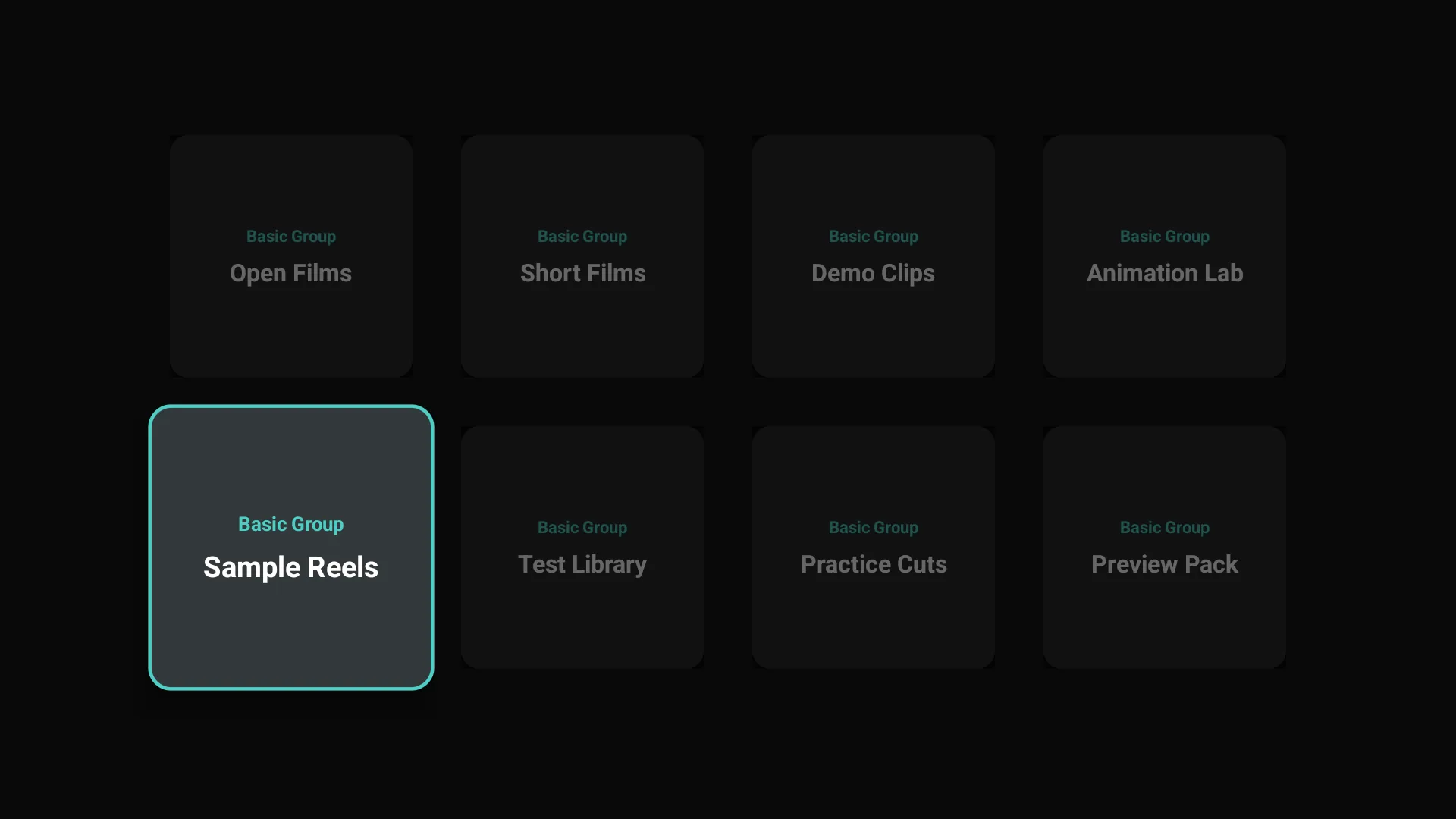
gPlayer is a free Telegram media player made for the Fire TV remote. It signs in with your own Telegram account through Telegram's official TDLib library, so your chats, channels and saved messages appear as a grid you can browse with the arrow keys.
- On your Fire TV, open the Appstore, search for gPlayer, or open gPlayer on Amazon and send it to your device.
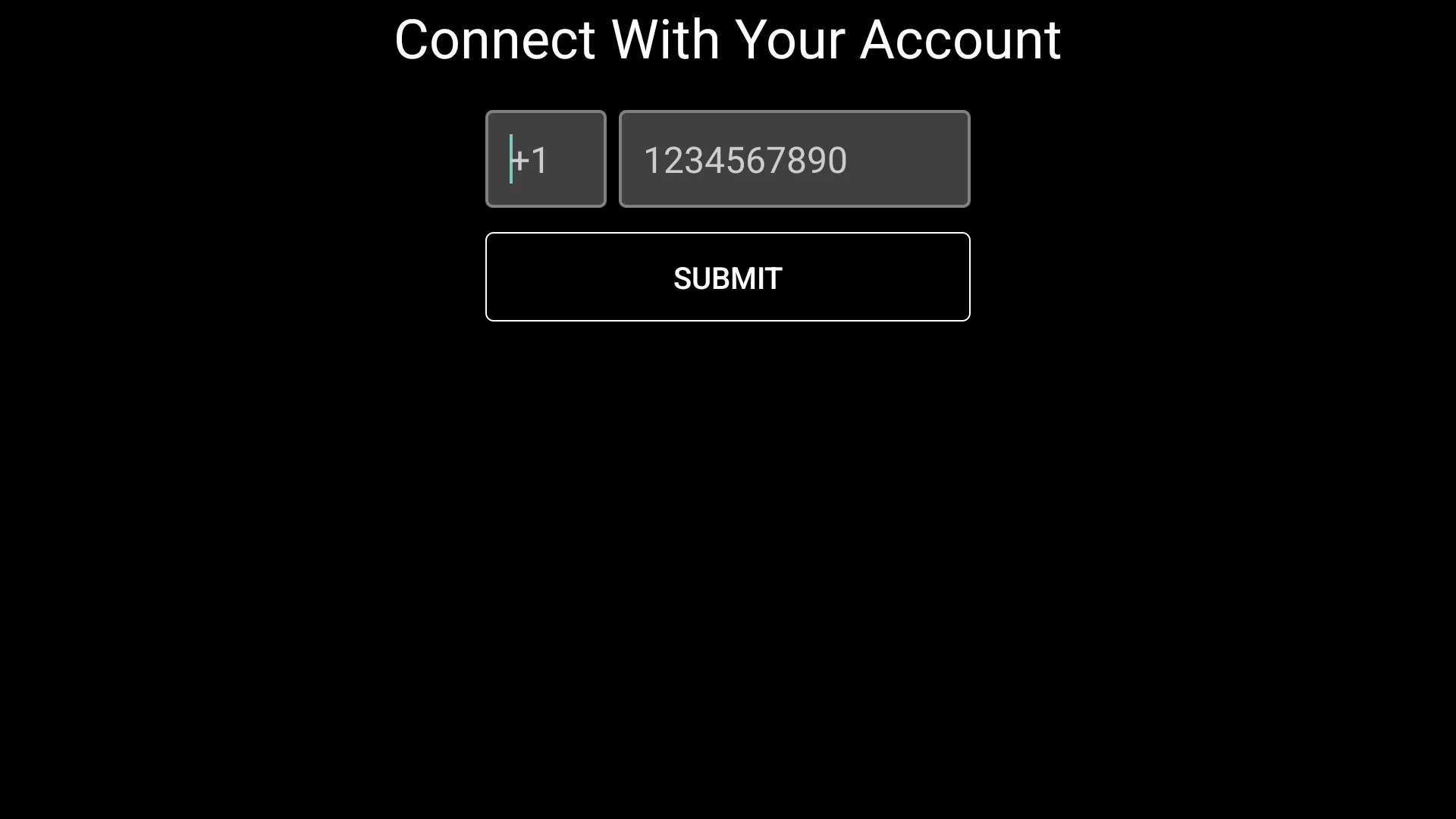
- Open gPlayer and enter your phone number with the remote.
- Enter the login code Telegram sends to the Telegram app on your phone.
- Pick a chat, channel or Saved Messages, choose a video and press play.
gPlayer has no ads and is open source under the MIT license, so anyone can check what it does on GitHub. Some newer Fire TV models run Amazon's Vega OS instead of Fire OS; if gPlayer does not appear in the Appstore on your device, it is not supported there yet.
2. Android TV and Google TV: install the gPlayer APK
On Android TV and Google TV, install gPlayer from its APK file (step-by-step: Telegram on Android TV and Google TV):
- Allow a browser or file manager on the TV to install unknown apps (in Settings, usually under Apps → Security & restrictions or Device preferences → Security).
- Download gPlayer v3.4 (APK) from this site.
- Open the file to install it, then sign in as in step 1.
3. Sideload Telegram's Android app
You can install Telegram's own Android app on a Fire OS device with a downloader app and "install unknown apps" turned on in Developer Options. It works, but it is the phone interface: small text, touch-sized buttons and no proper remote navigation, so most people add a mouse-pointer app to use it. Amazon's newest Fire TV models block sideloading entirely.
4. Use Telegram Web in a browser
Open a browser on your Fire TV, such as Amazon Silk, and go to web.telegram.org. You sign in by scanning a QR code with your phone. Playback works, but moving around a desktop web page with a remote is slow.
5. Mirror your phone screen
Many Android phones can mirror their screen to Fire TV. On the Fire TV, open Settings → Display & Sounds → Enable Display Mirroring, then start screen casting on your phone and play the video in Telegram. Quality depends on your Wi-Fi, and your phone stays busy while you watch.
Is it safe to sign in to Telegram on a TV app?
gPlayer signs in the same way as any Telegram app, through Telegram's official TDLib library. Your login and media go directly between the app and Telegram's servers; Effrix does not receive or store them (see the gPlayer privacy policy). You can end the TV session at any time from Telegram on your phone: Settings → Devices → select the session → Terminate.
Questions
Is there an official Telegram app for Fire TV?
No. As of November 2026, Telegram does not publish an app for Fire TV or Android TV. gPlayer is an independent app built on Telegram's official TDLib library.
Does gPlayer cost anything?
No. gPlayer is free and has no ads.
Which videos can I watch?
Only what is already in your own Telegram account: your chats, the channels and groups you belong to, and Saved Messages. gPlayer does not download from other sites.